

Enable a CRM user
1
Open Users
Go to Users & Teams and select the people whose status is Imported from CRM.
2
Invite them
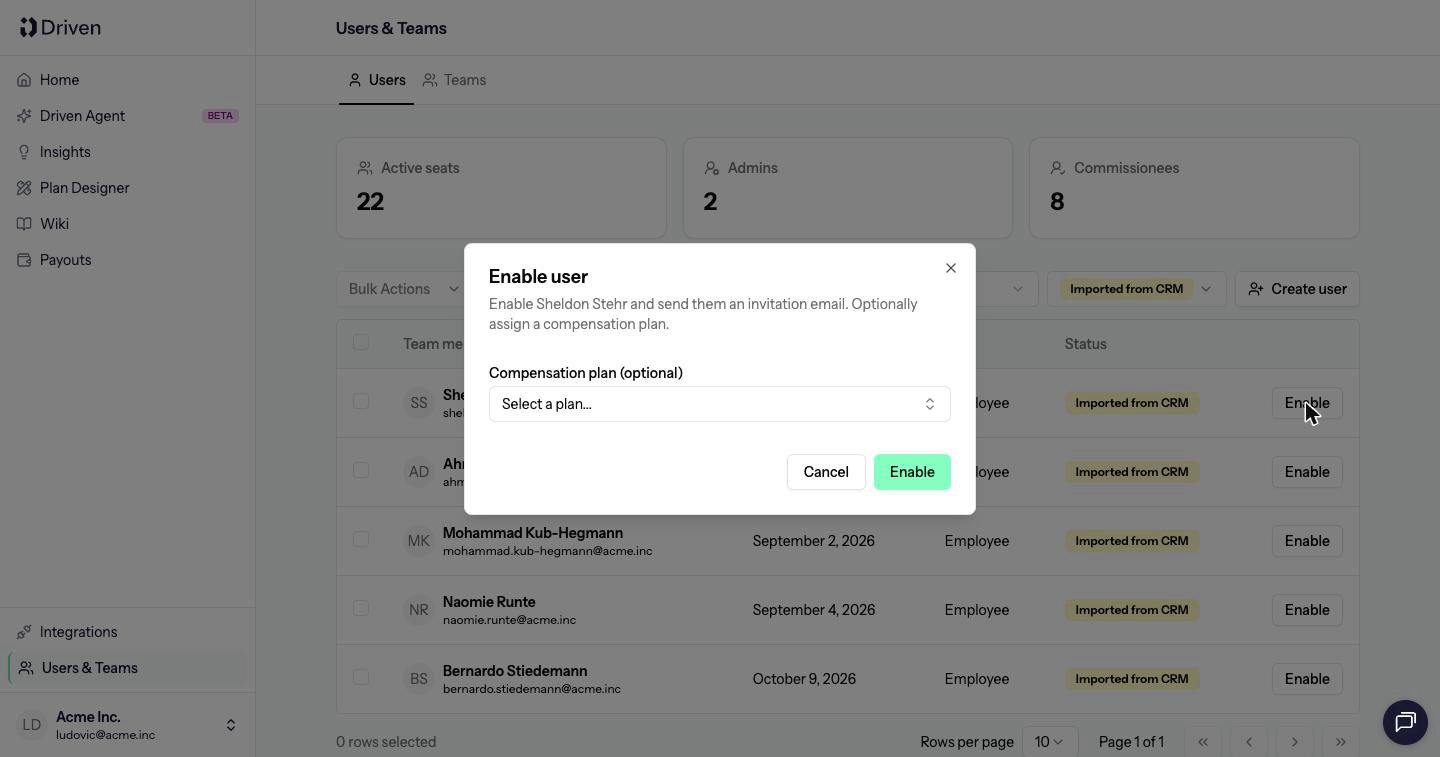
Click Enable on one person, or open Bulk Actions and choose Invite Users or Enable N users.
3
Optionally add a plan
Enable user asks for a Compensation plan (optional). Pick a plan if they should start on one now. You can skip it and add them later.
4
Fill in what the plan needs
If the plan needs data, the next step asks for a Plan join date, User variables and Quotas. Each variable has an Effective from date and a value. Dates cannot be in the future. With several people, Copy from previous repeats the last person’s entries.
Add someone who is not in the CRM
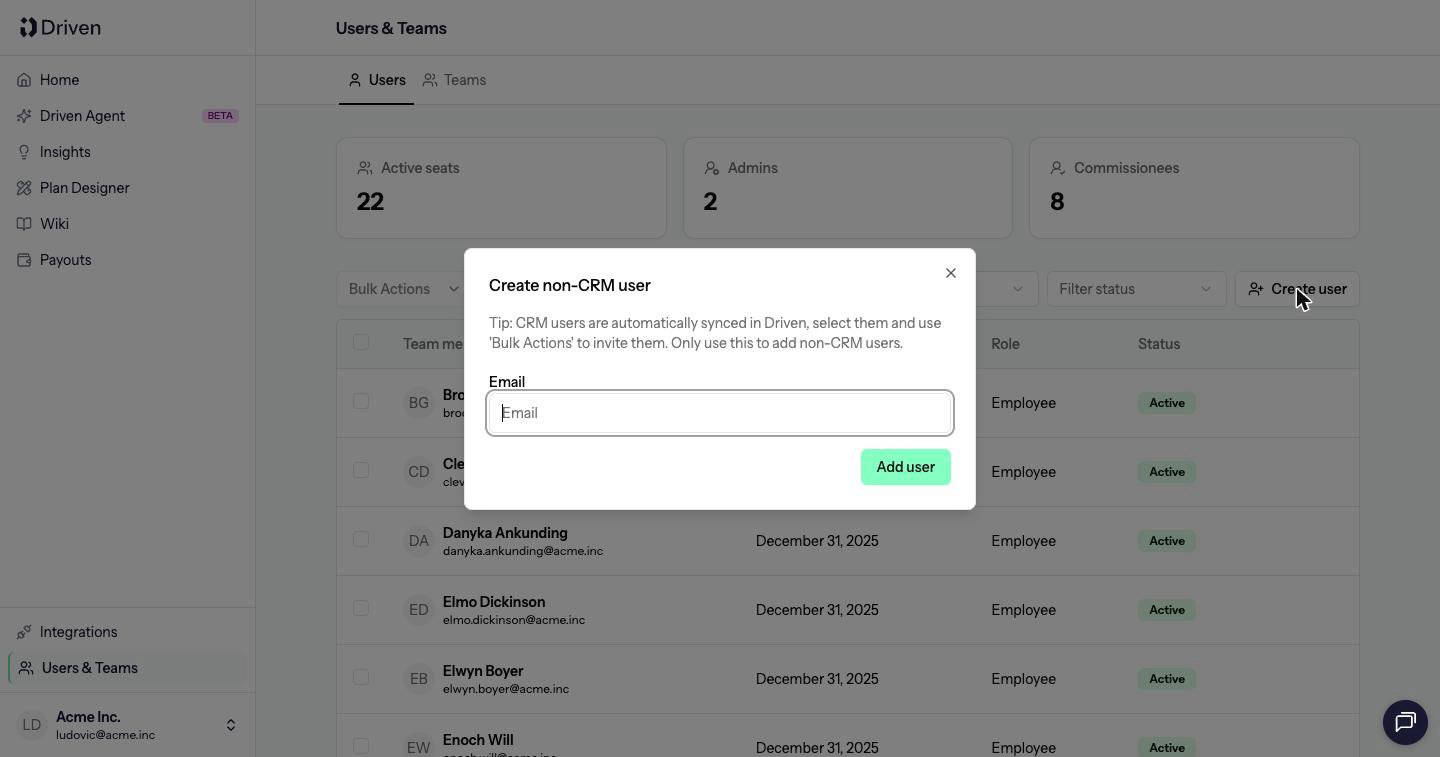
Create user opens Create non-CRM user. Enter an email and click Add user. The tip on the dialog is:Tip: CRM users are automatically synced in Driven, select them and use “Bulk Actions” to invite them. Only use this to add non-CRM users.
Name and email on a person who is linked to the CRM are read-only, and their page shows Linked to CRM. Change those details in the CRM. The next sync brings them across.