Edit values
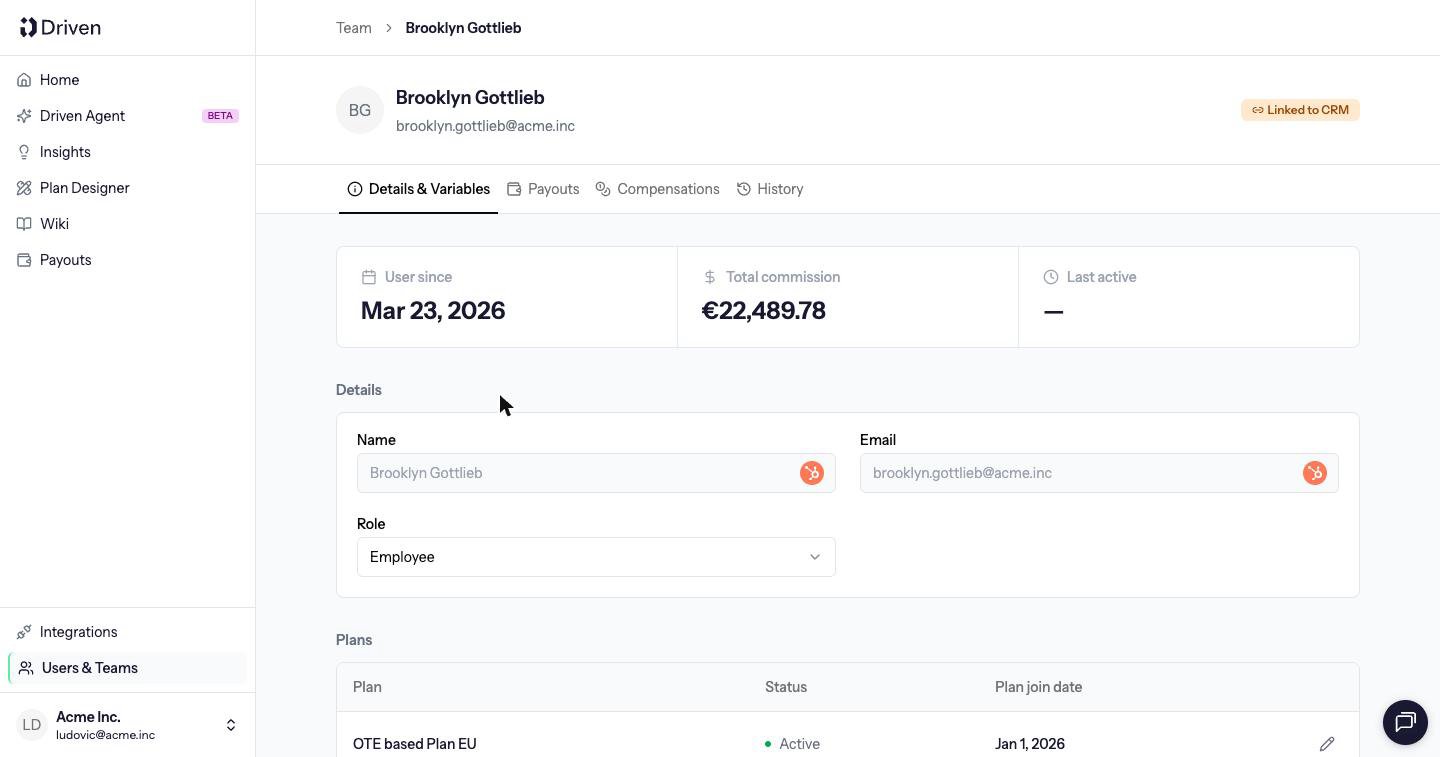
On Details & Variables, the Variables table has Variable, Effective from and Value.1
Add or edit a row
Add a dated value, or change an existing one. Base Salary and Variable Salary are always available. Custom variables appear here after you create them in the formula editor.
2
Pick the date it starts
Effective from is the first day this amount applies. It cannot be in the future. The previous amount stays in the history and still applies before this date.
3
Save
Click Save changes. Leaving with unsaved edits asks you to Stay or Leave.
When a payout was already paid
If the new value would change an approved or paid payout, Driven opens Review changes before it saves. You see who is affected and choose a recovery method, the same choice as when you publish a compensation. See Corrections. The locked payout is not rewritten. The difference is settled on a later payout. Which dated value a calculation uses depends on the compensation. A totals compensation uses the value at the end of the payout period. A row-based compensation uses the value on the date each deal counts. The full rule is on User variables in the builder.History
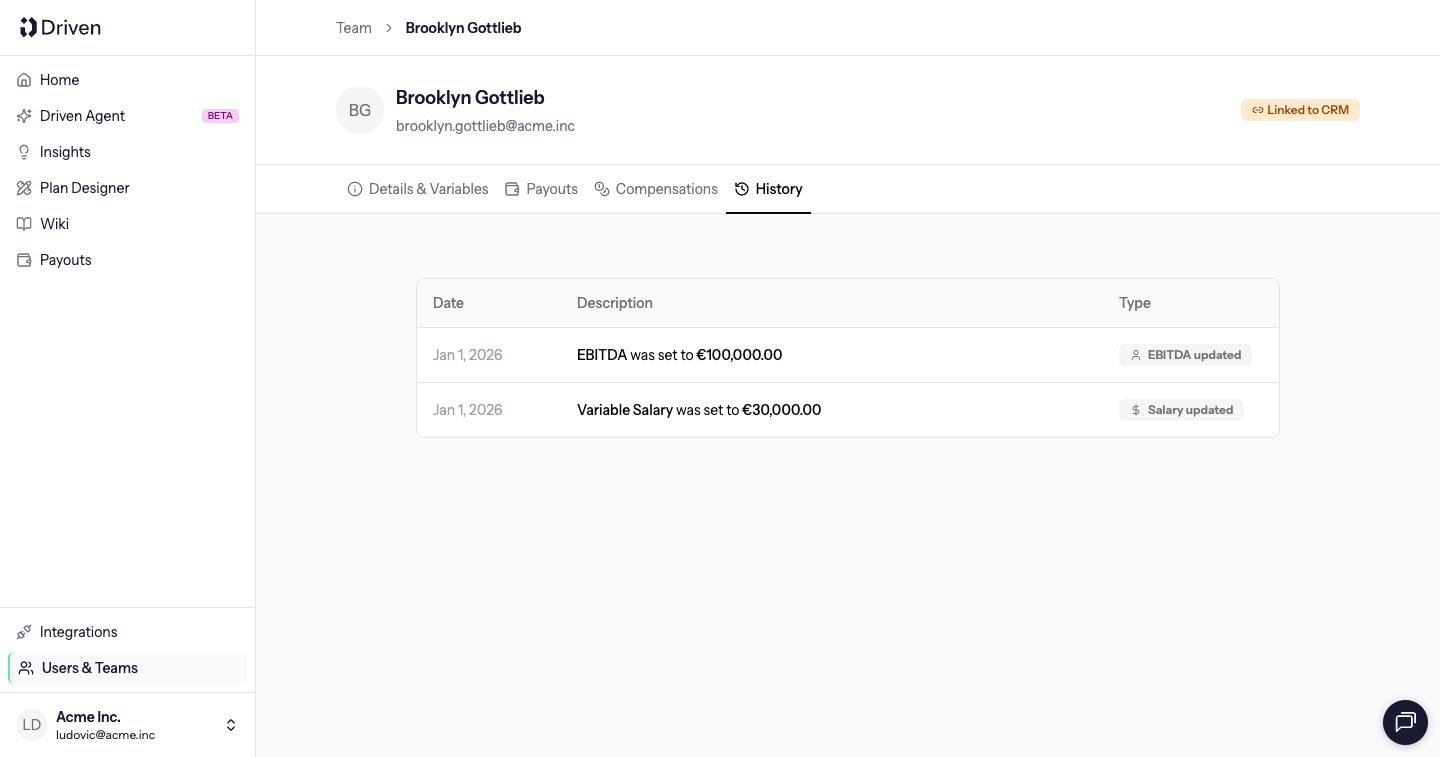
History lists each change, for example Base Salary was set to €4,000 or Base Salary changed from €4,000 to €5,000, with a badge such as Salary updated.