

Move a payout forward
1
Review the draft
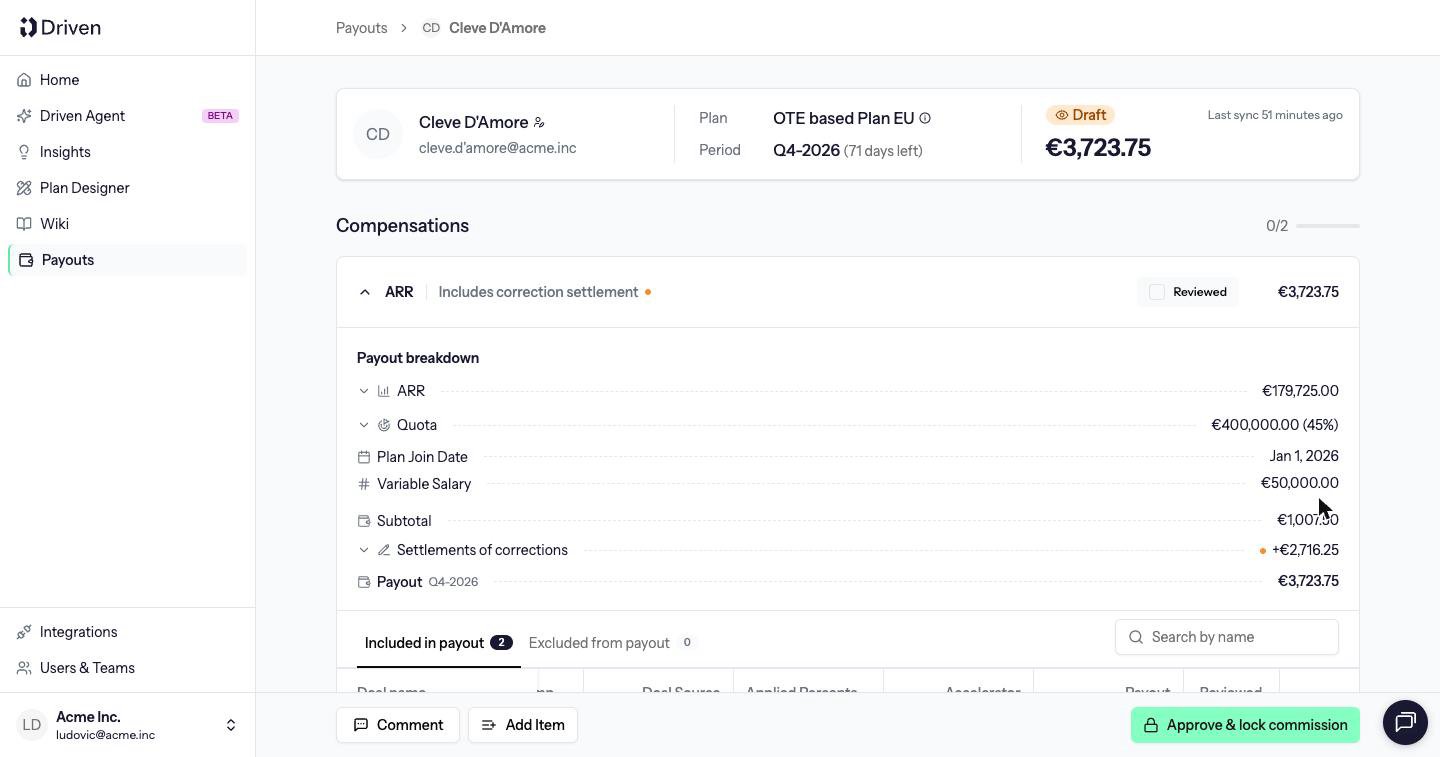
Open the payout from To review. Check the deals, the total and any comments. Make adjustments before you approve. You cannot make them after.
2
Approve and lock
Click Approve & lock commission. Driven freezes the calculation. See Locking. The payout moves to To pay, and the person is told their payout is approved.
3
Mark it paid
When the money has been transferred, click Mark as paid on the payout, or the same button on the To pay row. The person is told their payout is paid.
Order
You can approve a payout only when the previous payout in the same series is Paid. A series is one person and one payout frequency. March cannot be approved while February is still a draft or only approved. Cancelled payouts are skipped. If February was cancelled, March waits on January being paid, not on February. If you approve too early, Driven refuses with All previous payouts in this series must be paid before approving this payout. The first payout in a series has nothing before it, so it can be approved immediately. Approving also settles outstanding corrections. The amount that lands is calculated at approval time, not from whatever the draft page showed earlier. Add to next payout never takes the payout below zero.Back to draft
On an Approved payout, Back to draft unlocks it and recalculates it from current data. This is not available once the payout is Paid. The person is told the payout is back in review, and that the amount may change. Sending a payout back to draft removes the settlements it had applied, and removes corrections that were recorded against this payout. Corrections it had settled become outstanding again, and will be considered the next time a payout in the series is approved.Comments
Leave a comment… works on the payout as a whole, or on a single deal from the chat icon on that row. Comments are allowed after the payout is locked. The person on the payout can comment. So can anyone with Edit payouts. When a rep comments, people with company-wide access are notified. When an admin comments, the rep is notified.Notifications
If the person has notifications turned on, they receive an email, and a Slack message when Slack is connected, for three events:- The payout is approved
- The payout is paid
- The payout is put back in review